
Batch Tasks
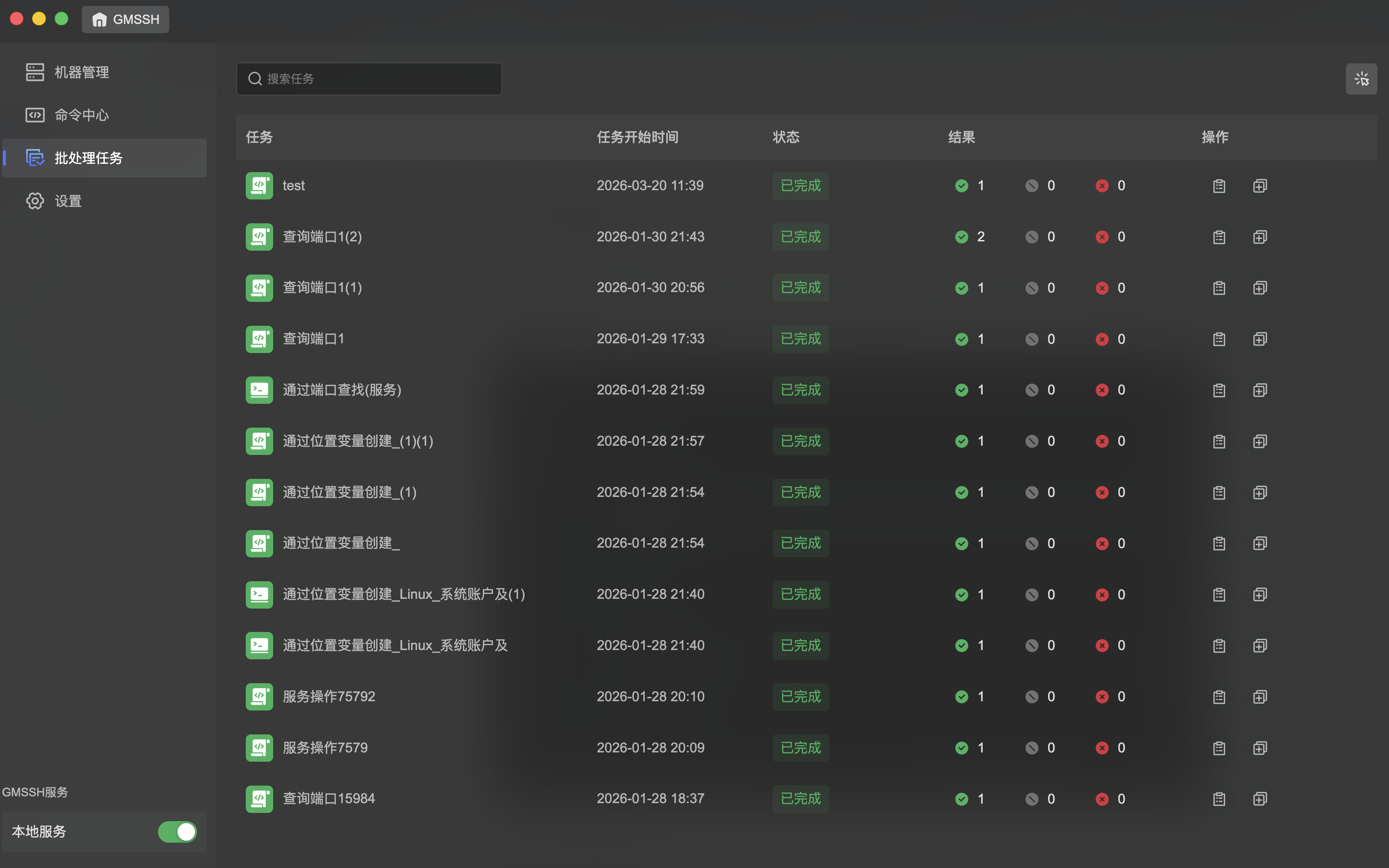
Batch Tasks is the GMSSH Client's multi-machine command execution and task management center. It supports dispatching commands or scripts to multiple servers simultaneously, with real-time tracking of execution status and results per machine. Ideal for batch inspections, unified configuration, service restarts, and other cross-machine operations scenarios.
Core Features
| Feature | Purpose | Core Capabilities |
|---|---|---|
| Task List | Task Overview | Search, time sorting, status and result statistics |
| Batch Execution | Task Creation | New command/script/Command Center — three sources, multi-machine selection |
| Task Details | Execution Tracking | Per-machine results, status filtering |
| Execution Logs | Result Viewing | Command output details, log download |
Task List
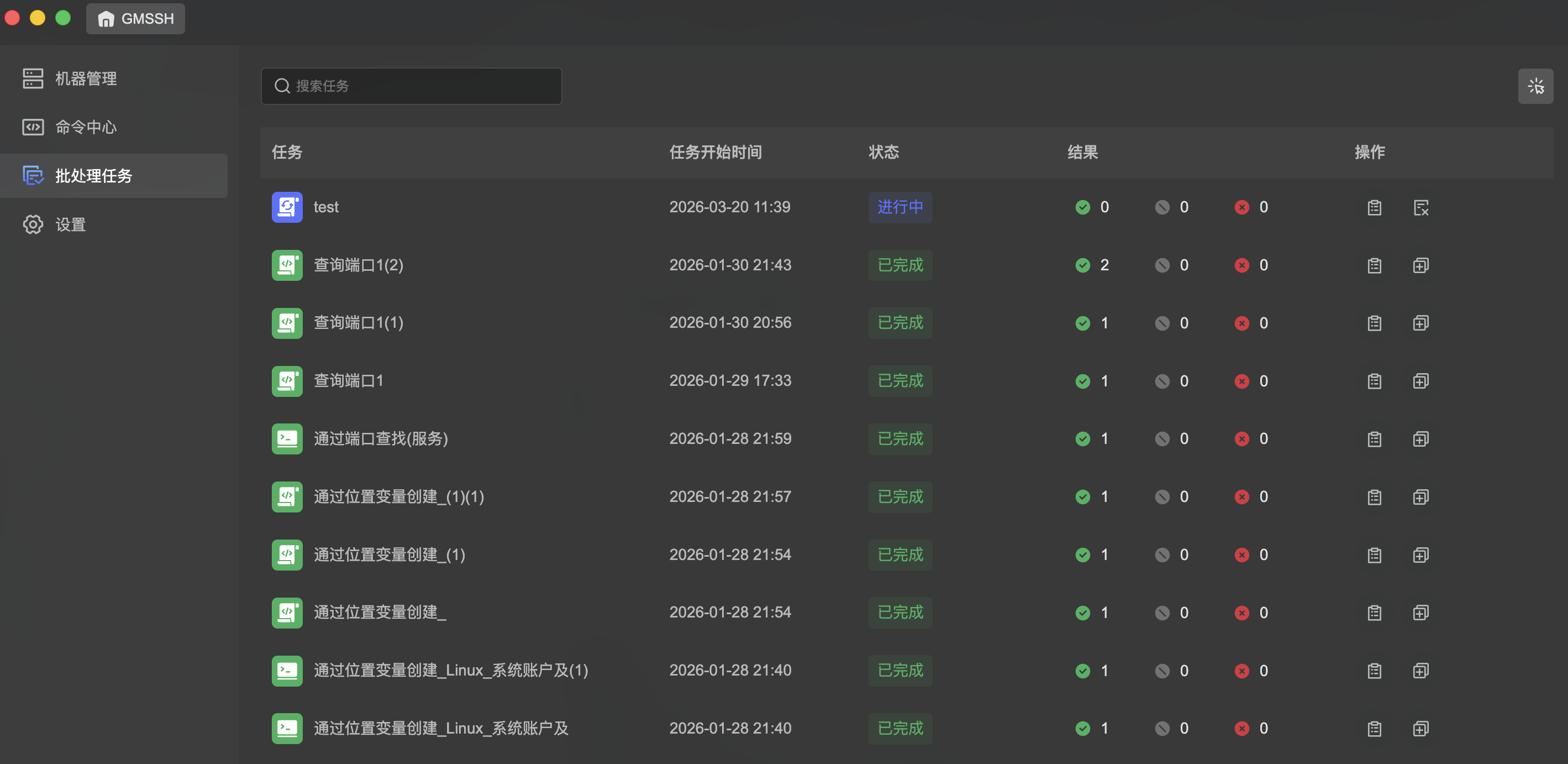
The main interface displays all batch execution task history in a table, with search by task name.
List Fields
| Field | Description |
|---|---|
| Task | Task name and icon |
| Start Time | Time the task was created and started |
| Status | Current task status |
| Results | Execution result statistics: 🟢 Succeeded / ⚠️ Stopped / 🔴 Failed |
| Actions | View logs, copy, re-execute, and other quick actions |
Task Status
| Status | Color | Description |
|---|---|---|
| In Progress | Blue | Task is executing, not all machines completed |
| Completed | Green | All target machines have finished execution |
Search
The top search box supports filtering the task list by task name.
Batch Execute Commands
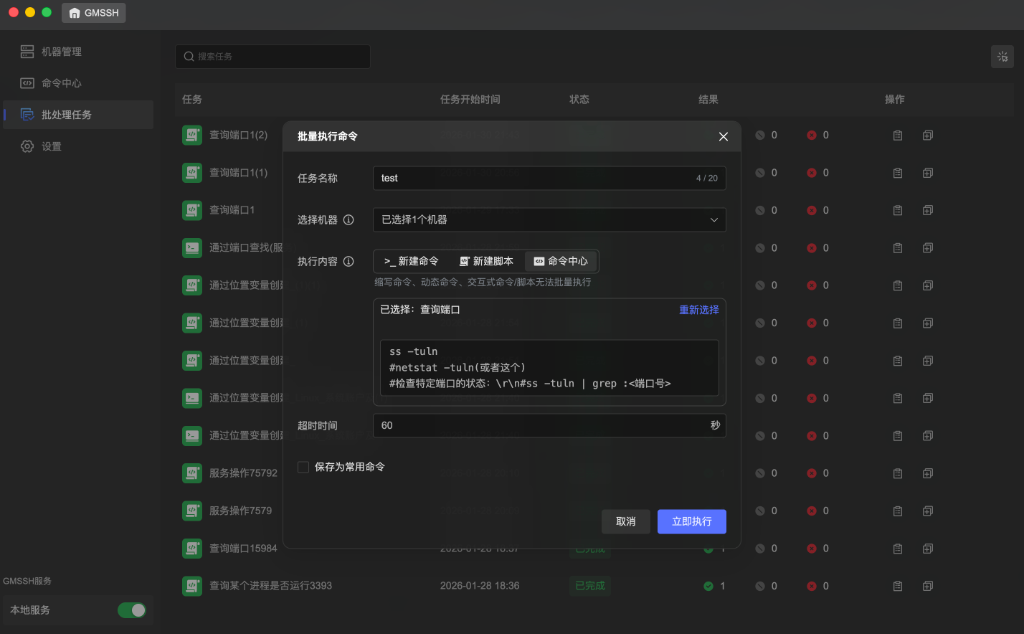
Click the action button at the top-right to open the "Batch Execute Commands" dialog and create a new batch task.
Basic Configuration
| Field | Description | Constraints |
|---|---|---|
| Task Name | Display name for this batch task | Max 20 characters |
| Select Machines | Choose target machines for execution, supports multi-select | Multi-select dropdown |
Execution Content
Three ways to specify the content to execute:
| Source | Description |
|---|---|
| >_ New Command | Write commands directly |
| 📄 New Script | Write multi-line scripts |
| SH Command Center | Select saved commands from the Command Center |
- When selecting from Command Center, displays "Selected: command name" with script preview and a "Reselect" option.
Note
Interactive commands, dynamic commands, and interactive scripts cannot be batch executed.
Execution Parameters
| Field | Description | Default |
|---|---|---|
| Timeout | Command execution timeout per machine | 60 seconds |
| Save as Common Command | Check to save this command to the Command Center | Unchecked |
- Click "Execute Now" to start batch dispatching commands.
- Click "Cancel" to discard the task.
Task Details
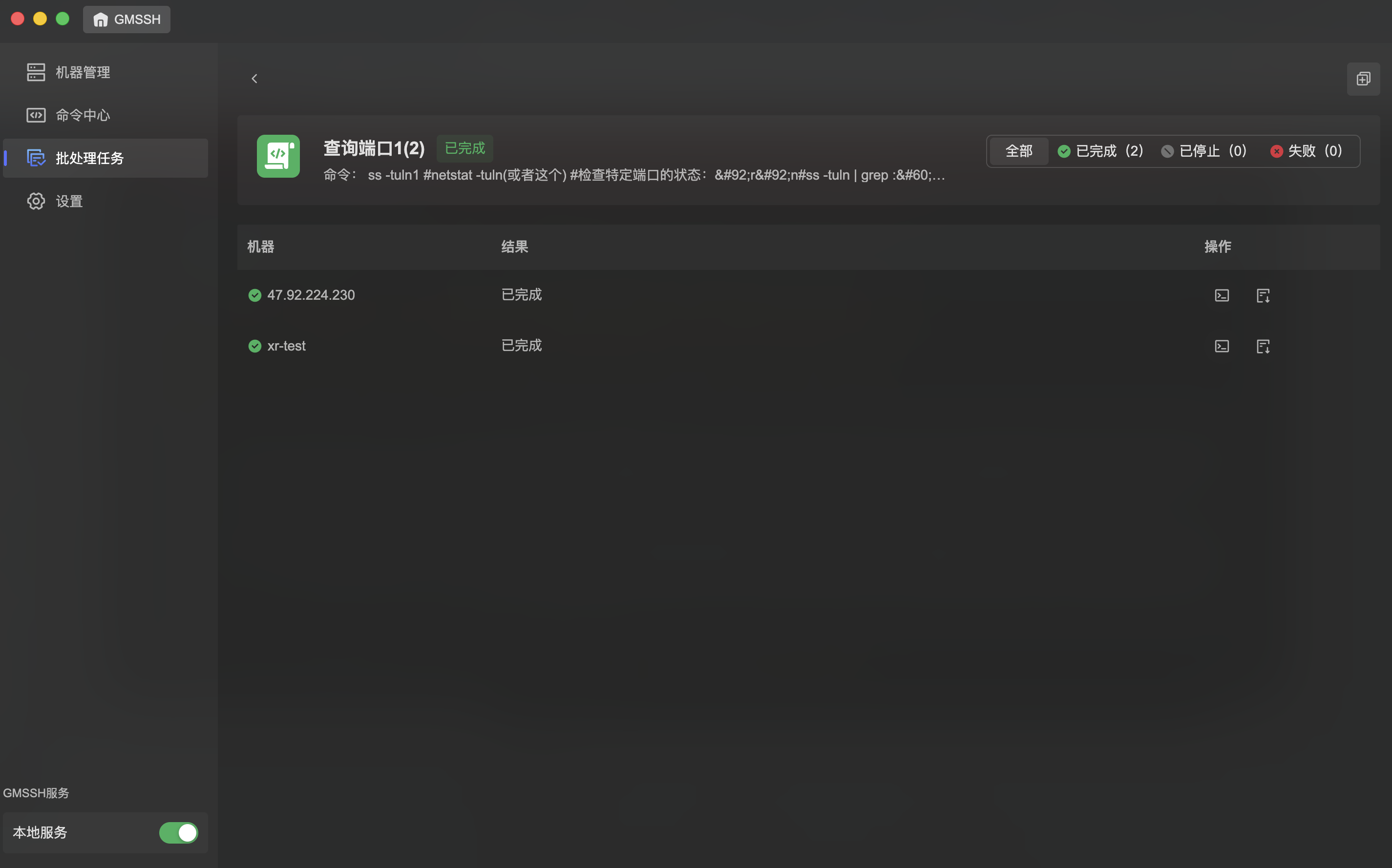
Click a task row in the task list to view per-machine execution results.
Task Overview
The top of the details page displays:
- Task Name & Status: e.g., "Query Port 1(2) Completed".
- Executed Command: Shows the full command executed.
- Result Filter Tabs: Filter the machine list by status:
| Tab | Description |
|---|---|
| All | Show all target machines |
| 🟢 Completed | Successfully executed machines |
| ⚠️ Stopped | Machines where execution was aborted |
| 🔴 Failed | Machines where execution failed |
Machine Execution List
| Field | Description |
|---|---|
| Machine | Target machine IP or name, with left dot indicating online status |
| Result | Execution result on this machine (Completed/Failed/Stopped) |
| Actions | View logs, copy results, and other action buttons |
View Logs
Click the "View Logs" icon on a machine row in the task details to open a log viewer showing the complete command output on that machine.
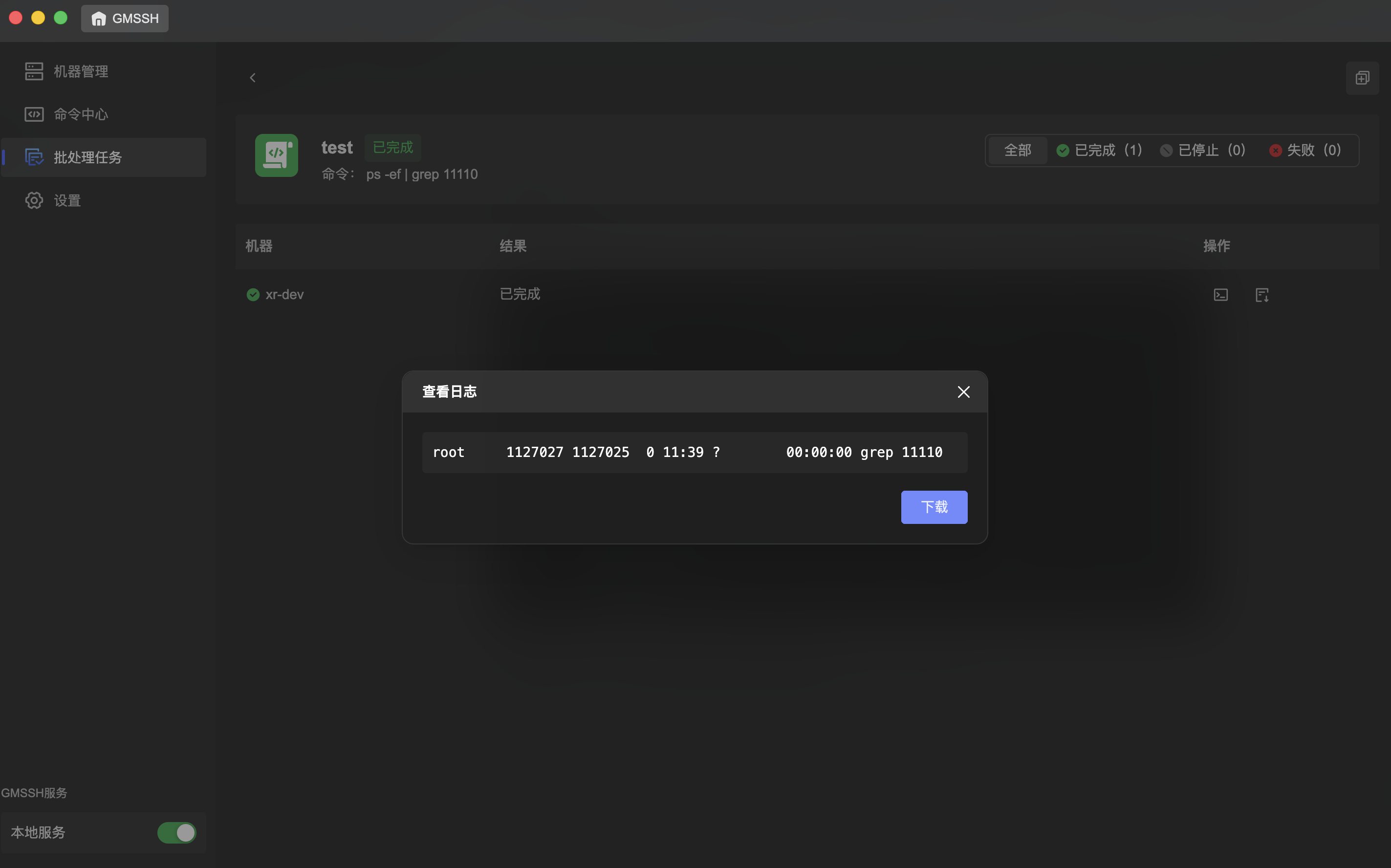
- Log Content: Displays the standard output of the command on that machine.
- Download: Click "Download" to save the log as a local file for archiving and sharing.