
App Center
The GMSSH App Center is an open operations application ecosystem platform, bringing together a rich collection of third-party tools and officially curated apps. Users can obtain and manage various operations tools with one click — no manual compilation or installation required — transforming your server into a powerful cloud workstation.
Explore Apps
One-Stop Entry to the App Ecosystem. The Explore page presents the full app ecosystem with a carefully curated layout, helping users quickly discover high-value tools.
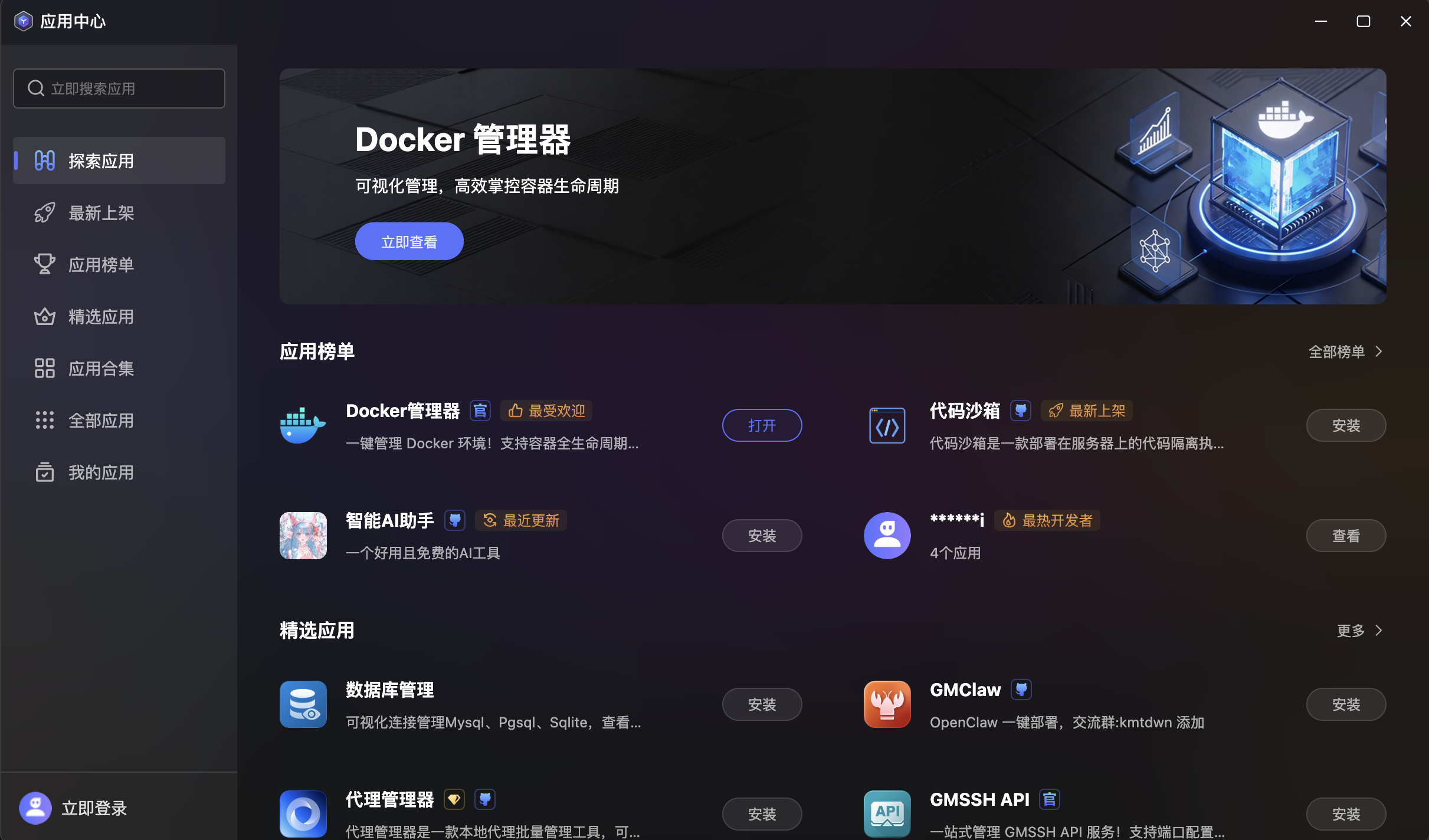
- Featured Banner: The top section uses immersive banner carousels to highlight trending or newly listed star apps (e.g., Docker Manager), with one-click access to detail pages.
- App Leaderboards: Aggregated display of top apps across "Most Popular", "Newest", and "Top Developers" dimensions, with clear badge tags.
- Curated Recommendations: A hand-picked list of high-quality apps by the official team, covering database management, cybersecurity, AI tools, and other core operations scenarios.
- Global Search: Top-left search box for quick keyword-based app lookup.
App Details
Deep Dive into Every App. Click any app card to enter its detail page, showcasing comprehensive information and usage status.
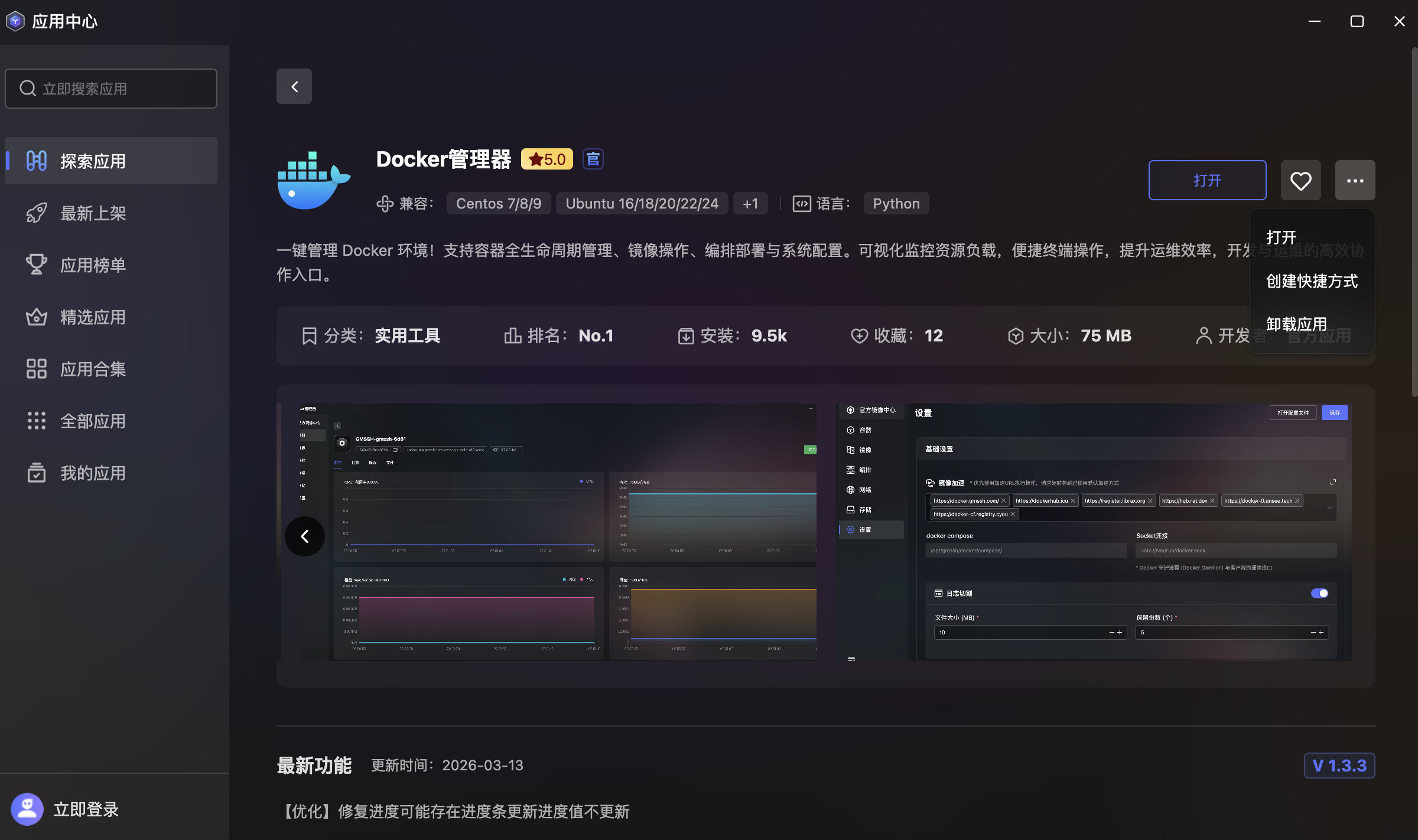
- Basic Info Overview: Displays app name, user rating, compatible system versions, development language, and feature description for quick compatibility assessment.
- Data Metrics Panel: Intuitive tags showing app category, ranking, install count, favorites, and package size for quantified decision-making.
- Screenshot Gallery: Embedded app interface screenshots with carousel preview, allowing users to preview the actual UI before installation.
- Changelog: Version-by-version iteration history with latest feature descriptions and optimization details.
- Quick Actions:
- Open / Install: One-click open for installed apps; one-click install for new ones.
- Create Shortcut: Pin frequently used apps to the desktop for faster access.
- Uninstall: One-click uninstall with data cleanup to free server resources.
- Favorite: Bookmark interesting apps for quick future access.
Newest
Stay Updated with Ecosystem Dynamics. The Newest page presents recently added apps in a timeline format, helping users track ecosystem growth in real-time.
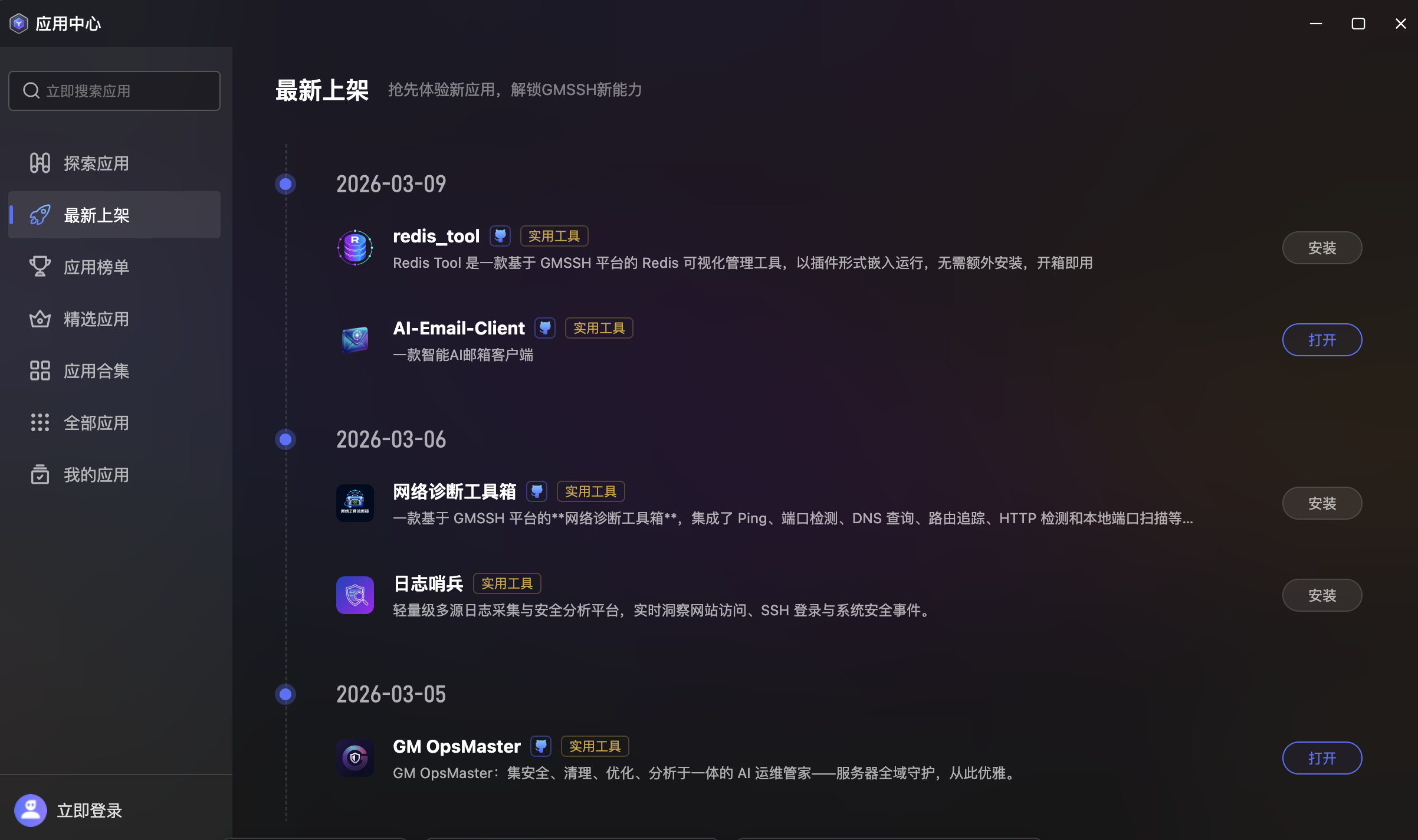
- Timeline Layout: Grouped by listing date with elegant timeline nodes, clearly showing the continuous update rhythm.
- App Card Summary: Each entry shows app icon, name, official certification badge, category tags (e.g., "Utility"), and brief description.
- Instant Install: Each app card includes an "Install" or "Open" button on the right for zero-navigation deployment.
App Rankings
Data-Driven Community Reputation Rankings. App Rankings aggregate real user behavior data across multiple dimensions, helping users efficiently filter community-verified quality tools.
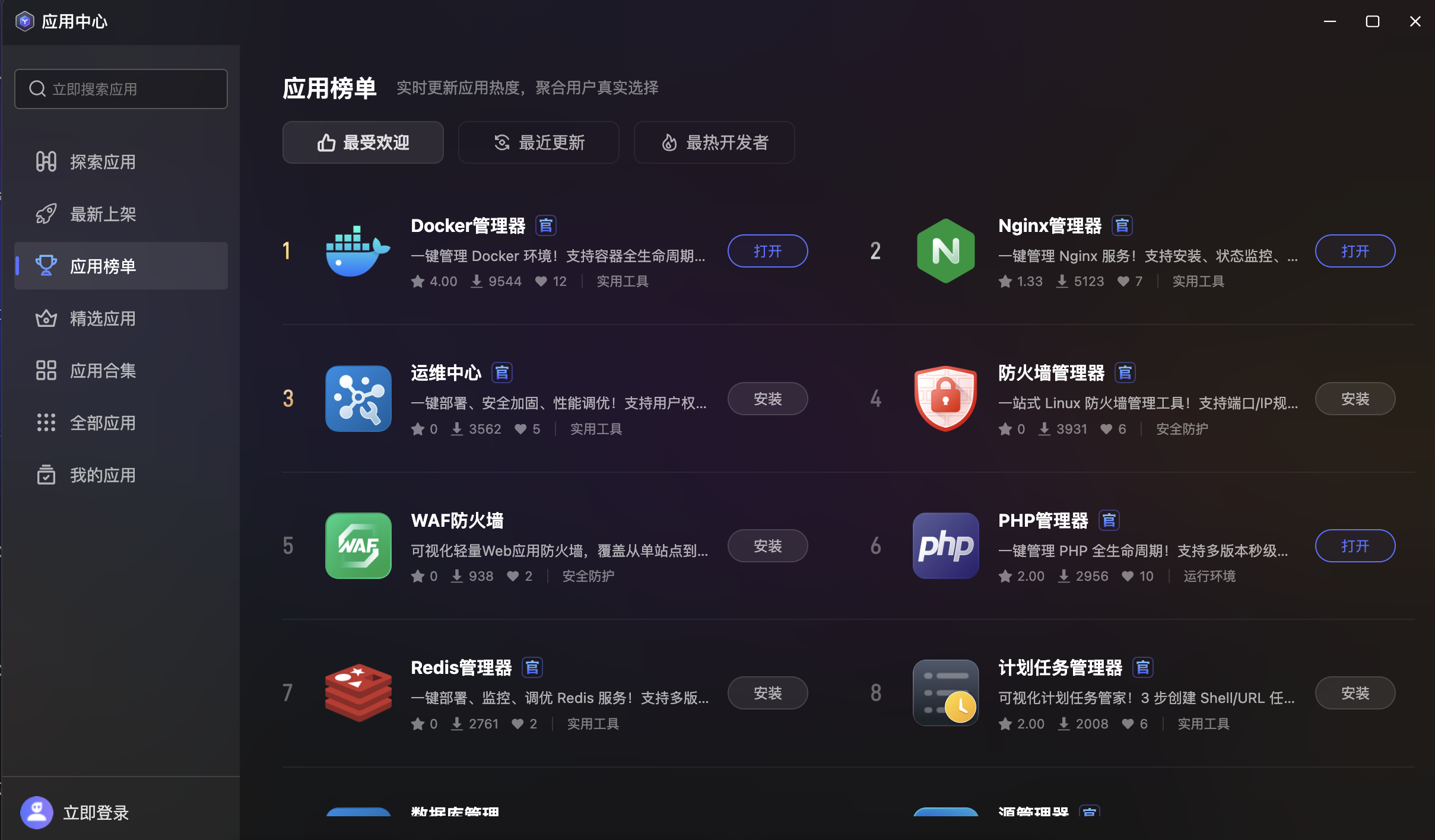
- Multi-Dimension Switching: Switch between "Most Popular", "Recently Updated", and "Top Developers" leaderboards to discover excellent apps from different perspectives.
- Ranking Numbers: Each app features a prominent ranking number for quick identification of top tools.
- Key Metrics Display: Each card shows rating, install count, favorites, and category — data-driven decisions.
- Status Awareness: Installed apps show "Open" button; uninstalled ones show "Install".
Featured Apps
Official Quality Assurance. The Featured page presents hand-picked apps by the operations team, recommending the most popular and well-regarded tools.
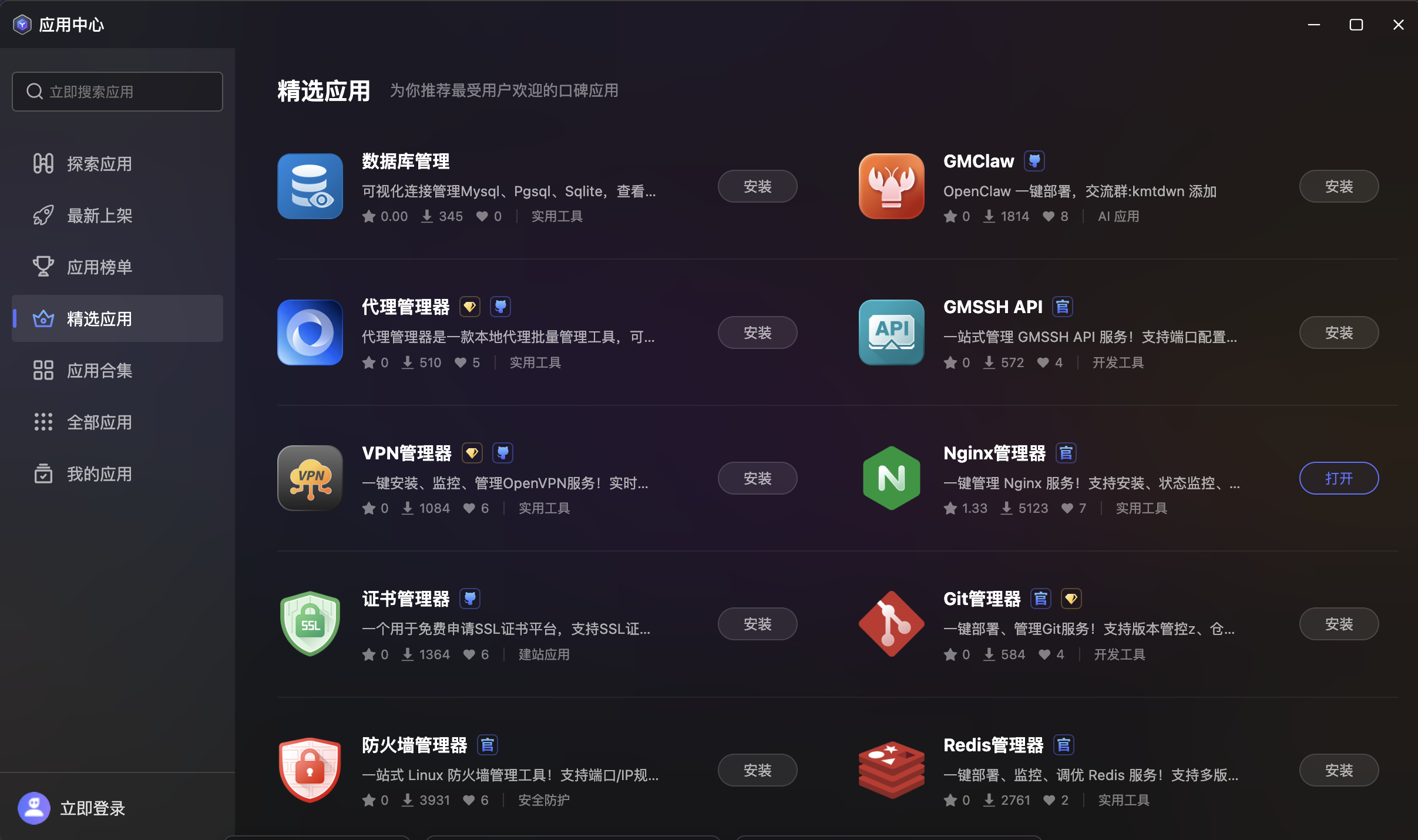
- Comprehensive Categories: Covering database management, web servers, security, development tools, AI applications, website builders, and more.
- Rich App Matrix: Including database management, GMClaw, Proxy Manager, GMSSH API, VPN Manager, Nginx Manager, Certificate Manager, Git Manager, Firewall Manager, Redis Manager, and more.
- Standardized Cards: Each app is displayed in a uniform card format with icon, name, certification badge, description, rating, install count, favorites, and category tags.
App Collections
Themed App Bundle Recommendations. Collections package complementary apps by use case, helping users build complete toolchains at once.
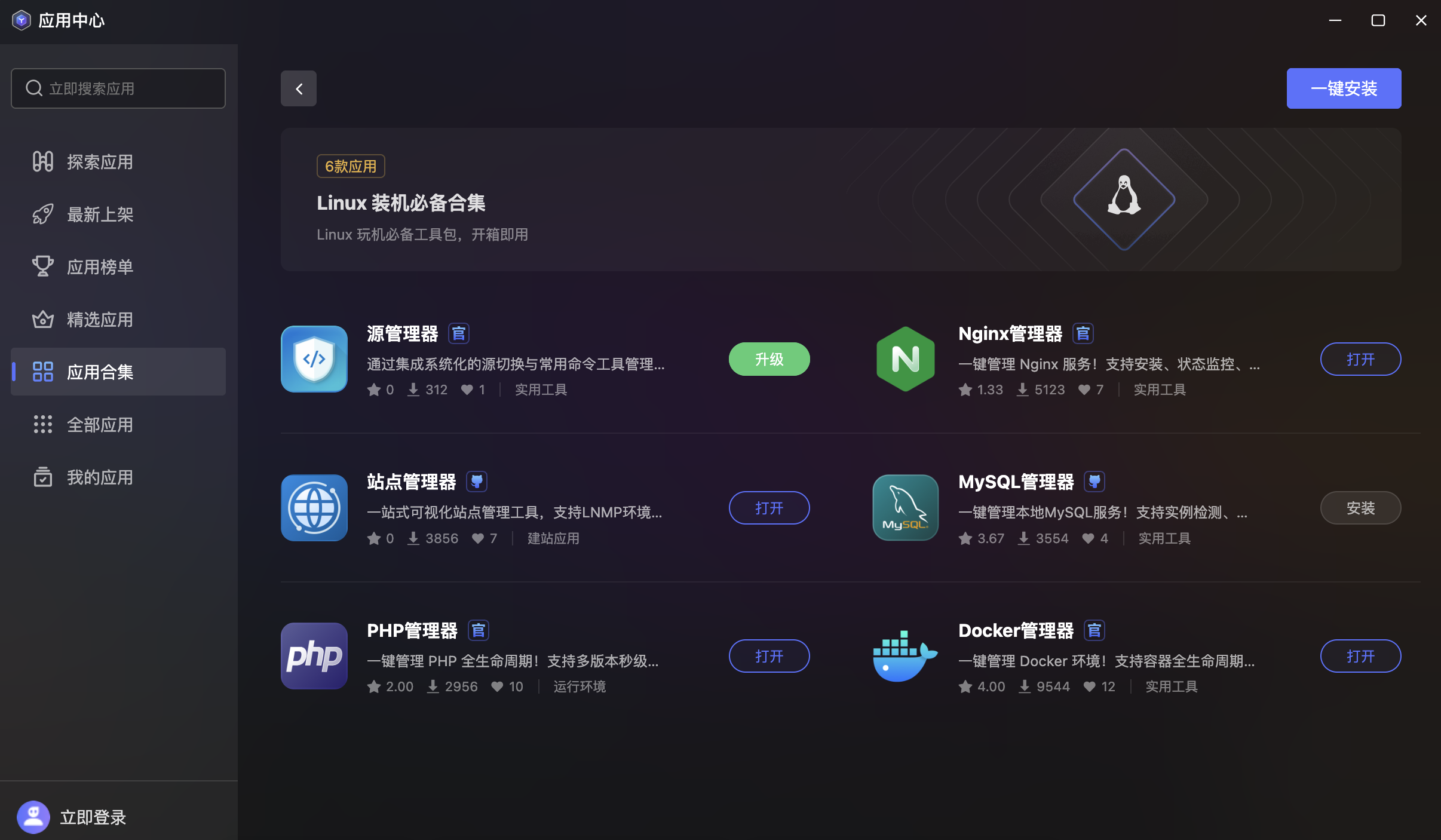
- Collection Banners: Each collection features a dedicated visual banner showing the collection name (e.g., "Linux Essential Bundle"), number of included apps, and description.
- One-Click Install: A prominent "Install All" button in the top-right corner for batch installation of all apps in the collection.
- App Listing: Each app in the collection is displayed as a standard card with icon, name, description, rating, install count, favorites, and install/open/upgrade buttons based on status.
- Scenario-Based Grouping: Organized by themes like "Linux Essentials", "Web Development Suite", "Security Hardening Kit", etc.
- Developer Collections: Supports aggregating all apps by a specific developer for tracking quality developer portfolios.
All Apps
Complete App Repository. The All Apps page provides the full App Center catalog with multi-dimensional filtering and sorting.
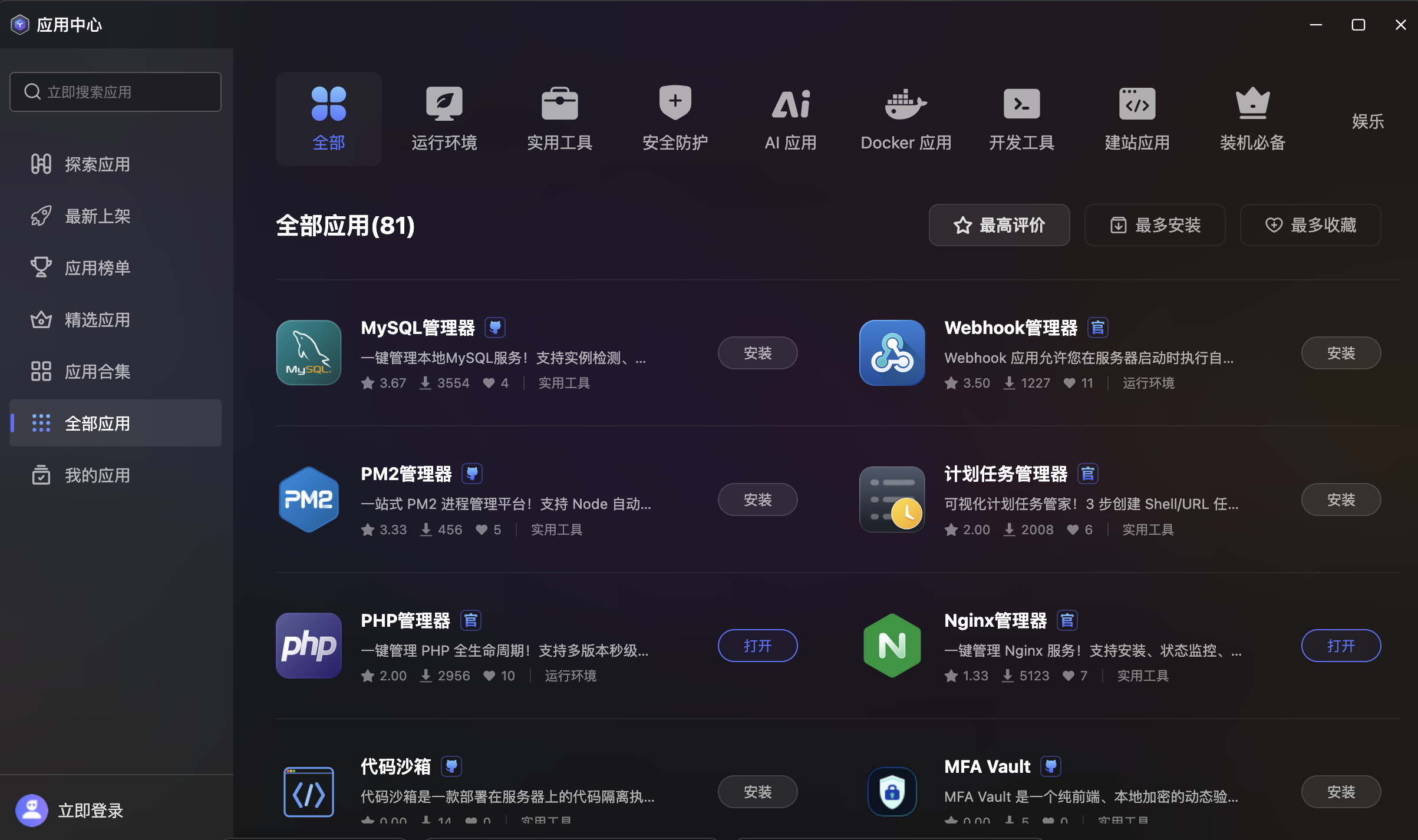
- Category Tags: Top bar with icon-based category quick switching — All, Runtime, Utilities, Security, AI Apps, Docker Apps, Dev Tools, Website Apps, Essentials, Entertainment.
- Smart Sorting: Supports "Highest Rated", "Most Installed", and "Most Favorited" sorting dimensions.
- Standardized Cards: Each app is uniformly displayed with icon, name, certification badge, description, rating, install count, favorites, and category tags, with one-click install or open.
My Apps
Personal App Asset Management Center. View and manage all apps acquired through the App Center.
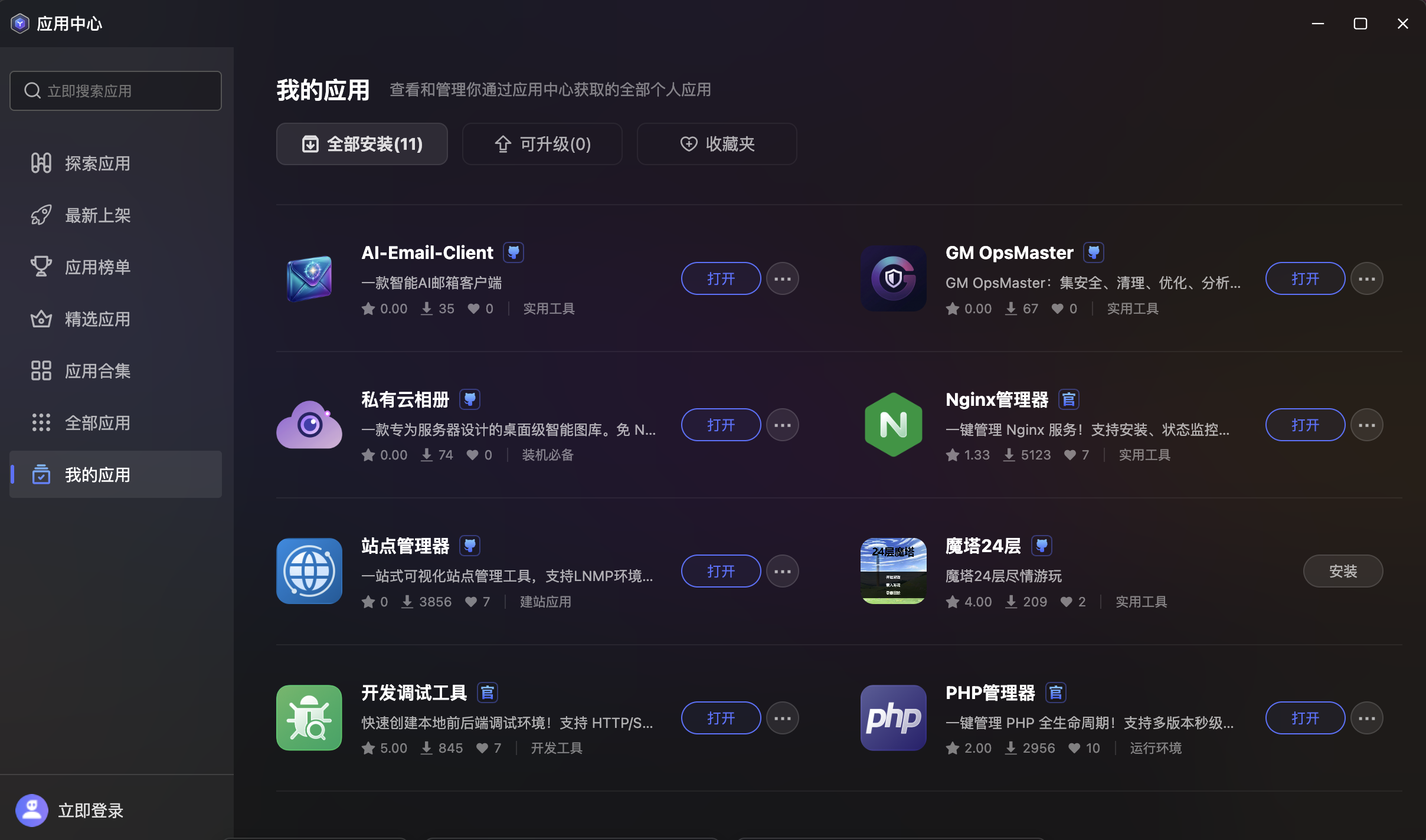
- Three-Tab Navigation: Top tabs for "All Installed", "Upgradable", and "Favorites" with real-time counts (e.g., "All Installed(11)", "Upgradable(0)").
- Installed Apps Overview: Standard cards listing all deployed apps with complete information including icon, name, certification, description, rating, install count, and favorites.
- Quick Actions: Each installed app provides an "Open" button and more menu (create shortcut, uninstall, etc.).
- Upgrade Management: The Upgradable tab displays apps with new versions available.
- Favorites: Aggregates bookmarked apps for quick future access and installation.