
Command Center
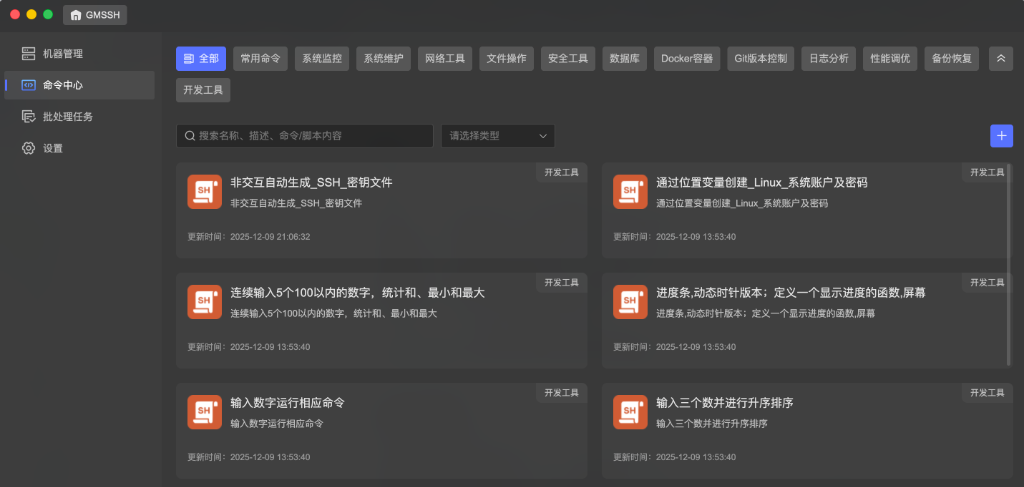
The Command Center is the GMSSH Client's command and script management platform, providing centralized storage, categorized search, and one-click batch execution of common operations commands. With 14 built-in categories covering all system operations scenarios, support for command variable templates, and the Gemius AI assistant, it standardizes and automates repetitive operations tasks.
Core Features
| Feature | Purpose | Core Capabilities |
|---|---|---|
| Command Library | Centralized Management | 14 categories, search & filter, card-style browsing |
| Command Details | View & Edit | Full script preview, variable highlighting |
| Add Command | Command Creation | Command/script dual types, tag classification, AI assistant |
| Batch Execution | Multi-Machine Execution | Target machine selection, variable replacement, timeout control |
Command Library
Categorized search center for operations commands. The command library displays all saved commands and scripts in a card list, with rich category tabs and search capabilities at the top.
Category Tabs
The top tab bar includes 14 built-in operations scenario categories:
| Category | Description |
|---|---|
| All | Show all commands |
| Common Commands | Frequently used daily commands |
| System Monitoring | CPU, memory, disk, process monitoring |
| System Maintenance | System updates, cleanup, restart operations |
| Network Tools | Network diagnostics, port scanning, connectivity tests |
| File Operations | File search, compression, permission management |
| Security Tools | Security auditing, firewall, user permissions |
| Database | Database backup, recovery, optimization |
| Docker Containers | Container management, image operations, orchestration |
| Git Version Control | Git repository management and operations |
| Log Analysis | Log viewing, filtering, analysis tools |
| Performance Tuning | System performance detection and optimization |
| Backup & Recovery | Data backup and disaster recovery |
| Dev Tools | Development environment configuration and debugging |
Search & Filter
- Keyword Search: Search box supports fuzzy search by command name, description, or command/script content.
- Type Filter: Right-side dropdown for filtering by command type.
Command Cards
Each command card displays:
- Command Name: e.g., "Auto-generate SSH key file non-interactively".
- Command Description: Brief description of the command's purpose.
- Category: Top-right tag showing the command's category (e.g., "Dev Tools").
- Updated: Last modification time at the bottom.
Command Details
Click a command card to view its full information and script content.
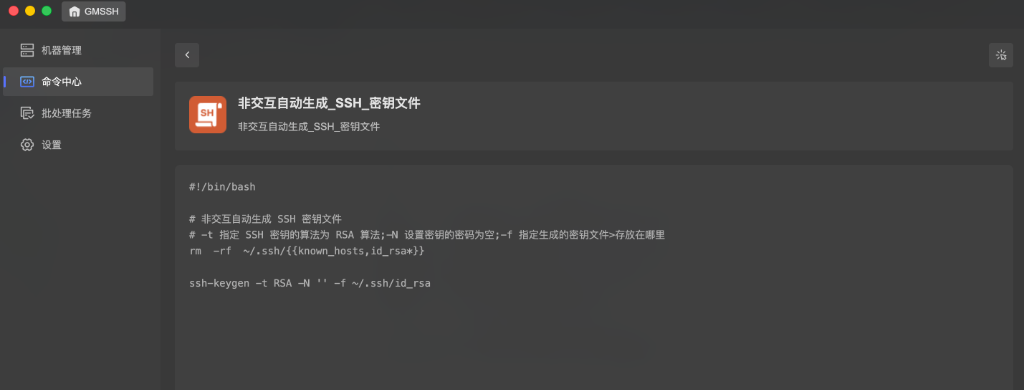
- Command Title: Command name and description at the top.
- Script Content: Full command/script content displayed in a code block with syntax highlighting.
- Variable Tags: Variables marked with
{{variableName}}syntax are highlighted and can be dynamically replaced at execution time. - Back to List: Click the "<" button at the top-left to return to the command list.
- Batch Execute: Top-right provides a quick action entry for batch execution.
Add Common Command
Click the "+" button at the top-right of the command library to open the "Add Common Command" dialog.
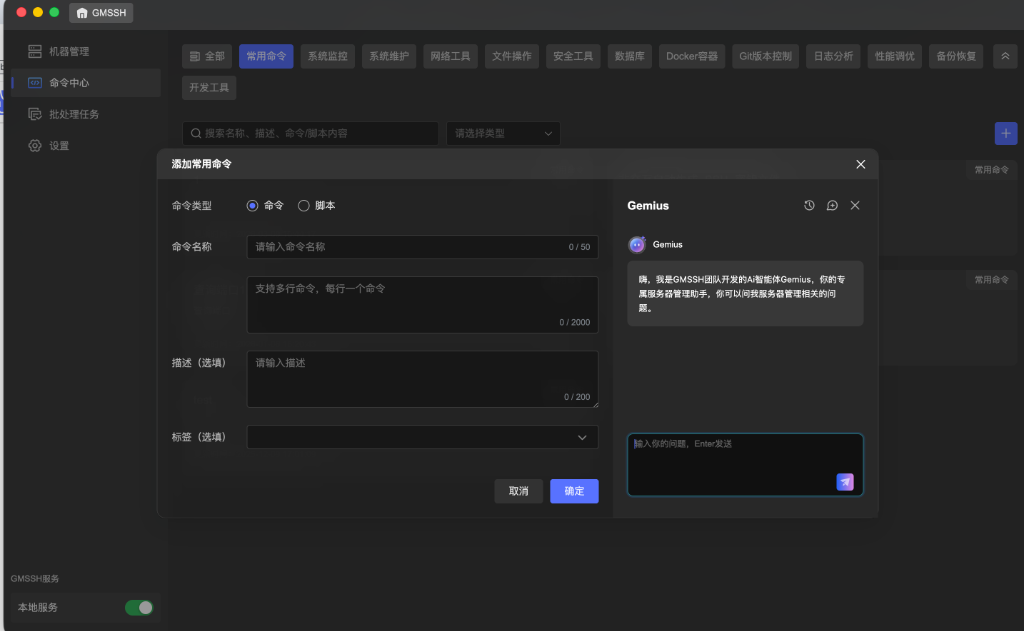
| Field | Description | Constraints |
|---|---|---|
| Command Type | Choose "Command" or "Script" | Toggle |
| Command Name | Custom display name for the command | Max 50 characters |
| Command/Script Content | Write command or script code, supports multiple lines | Max 2000 characters |
| Description (Optional) | Additional notes about the command's purpose | Max 200 characters |
| Tags (Optional) | Assign category tags via dropdown | Dropdown |
Gemius AI Assistant
When adding a command, the Gemius AI assistant panel automatically appears on the right. Gemius is an AI agent developed by the GMSSH team:
- Smart Command Generation: Describe what you want to achieve, and Gemius generates the corresponding command or script.
- Command Explanation: Get detailed explanations for unfamiliar commands.
- Q&A: Answer server management-related technical questions.
Type your question and press Enter to send. Gemius responds in real-time.
Tip
For more about Gemius, see: Gemius AI
Batch Execute Commands
Click the execute button on the command details page, or select "Batch Execute" from the command card's action menu to open the batch execution dialog.
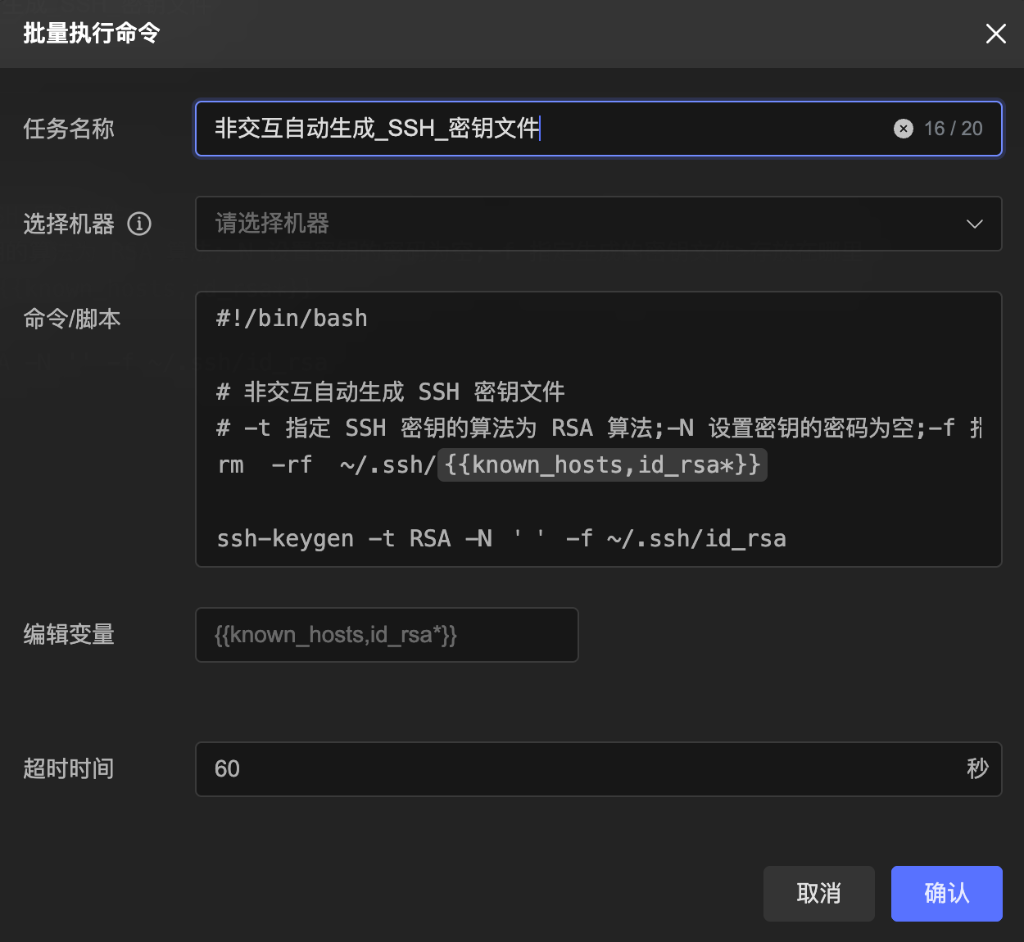
| Field | Description | Constraints |
|---|---|---|
| Task Name | Name for this execution task, auto-filled with command name | Max 20 characters |
| Select Machines | Choose target machines for execution, supports multi-select | Multi-select dropdown |
| Command/Script | Command or script content to execute, auto-loaded from command details | Editable |
| Edit Variables | Variables marked with {{variableName}} are auto-extracted here for value input before execution | — |
| Timeout | Command execution timeout per machine | Default 60 seconds |
- Click "Confirm" to start batch execution on selected machines.
- Click "Cancel" to discard.
Tip
For execution status and result viewing, see: Batch Tasks