
Terminal
The Terminal is an advanced SSH terminal emulator built into the GMSSH Client, delivering a smart operations experience far beyond traditional terminals. It supports multi-tab sessions, AI command generation, terminal autocompletion, command history search, Command Center integration, file management, and the Gemius AI assistant — making command-line operations efficient, intelligent, and enjoyable.
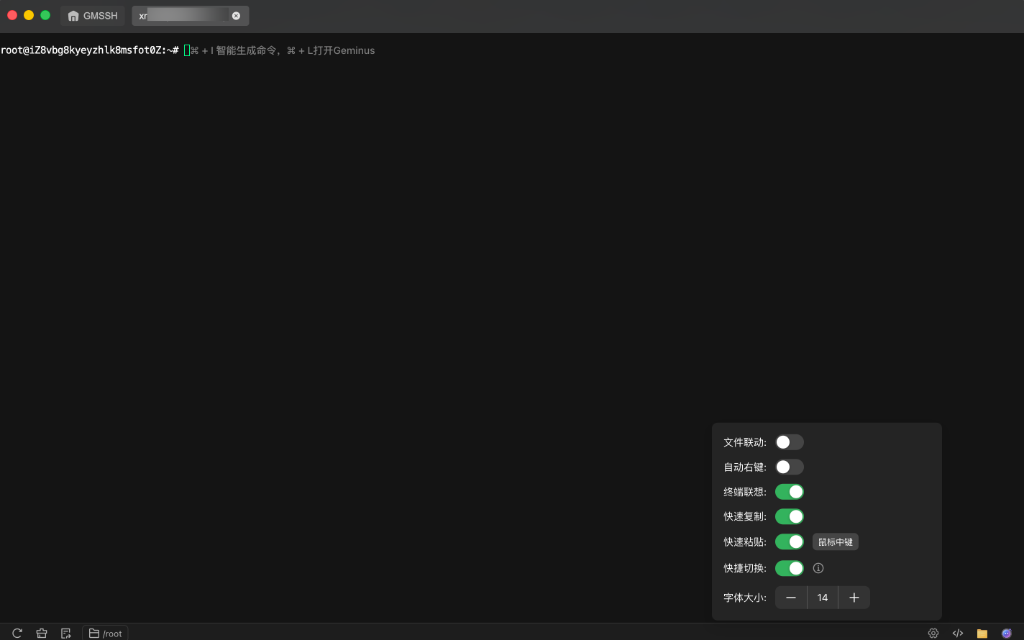
Core Features
| Feature | Purpose | Core Capabilities |
|---|---|---|
| Multi-Tab Terminal | Session Management | Parallel multi-tab operation, quick machine switching |
| AI Command Generation | Smart Operations | Describe needs in natural language, AI generates commands |
| Terminal Autocomplete | Command Completion | Real-time suggestions with command descriptions |
| Command History | Command Reuse | Numbered index, search filter, one-click execution |
| Command Center | Command Library | Browse and execute saved commands directly in terminal |
| File Integration | File Management | Sidebar file tree with right-click file management |
| Gemius AI | AI Assistant | Server management Q&A, command explanations |
| Terminal Settings | Personalization | Autocomplete toggle, quick copy/paste, font size |
AI Command Generation
Describe what you want in natural language, let AI write the command. Press ⌘ + I, type your desired functionality, and AI automatically generates the corresponding Shell command.
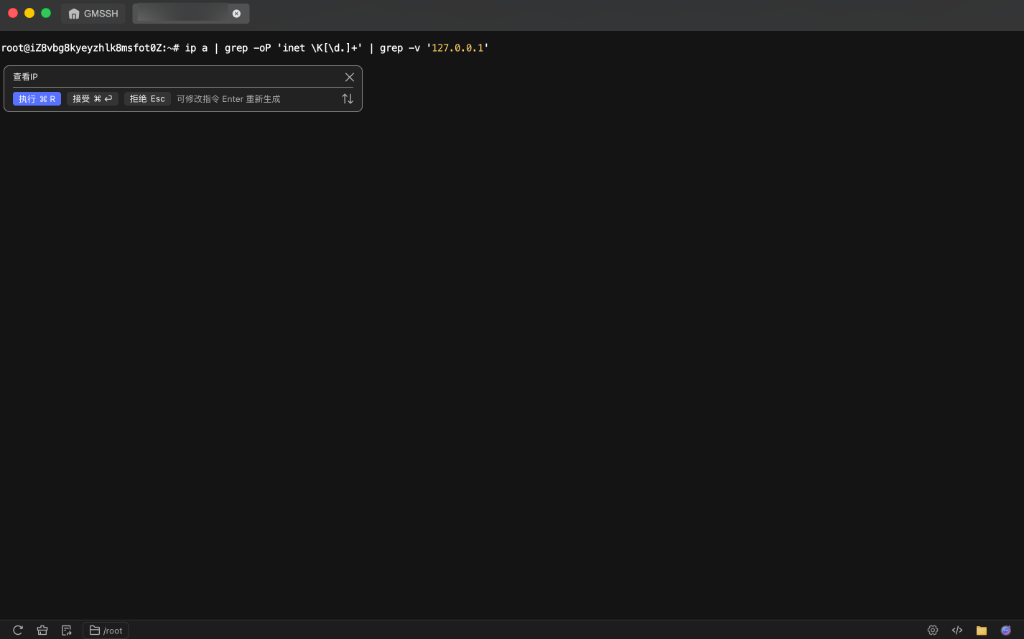
Usage flow:
- Press
⌘ + Iin the terminal to open the AI command generation panel - Type a natural language description (e.g., "check IP")
- AI generates the corresponding command (e.g.,
ip a | grep -oP 'inet \K[\d.]+' | grep -v '127.0.0.1') - Choose an action:
| Action | Shortcut | Description |
|---|---|---|
| Execute | ⌘ R | Execute the generated command immediately |
| Accept | ⌘ ↵ | Insert command into terminal without executing, allowing manual edits |
| Reject | Esc | Discard the generated result |
| Regenerate | Enter | Modify the description and regenerate |
Terminal Autocomplete
Type and get suggestions instantly. The autocomplete feature provides real-time intelligent completion suggestions as you type, eliminating the need to memorize full command names.
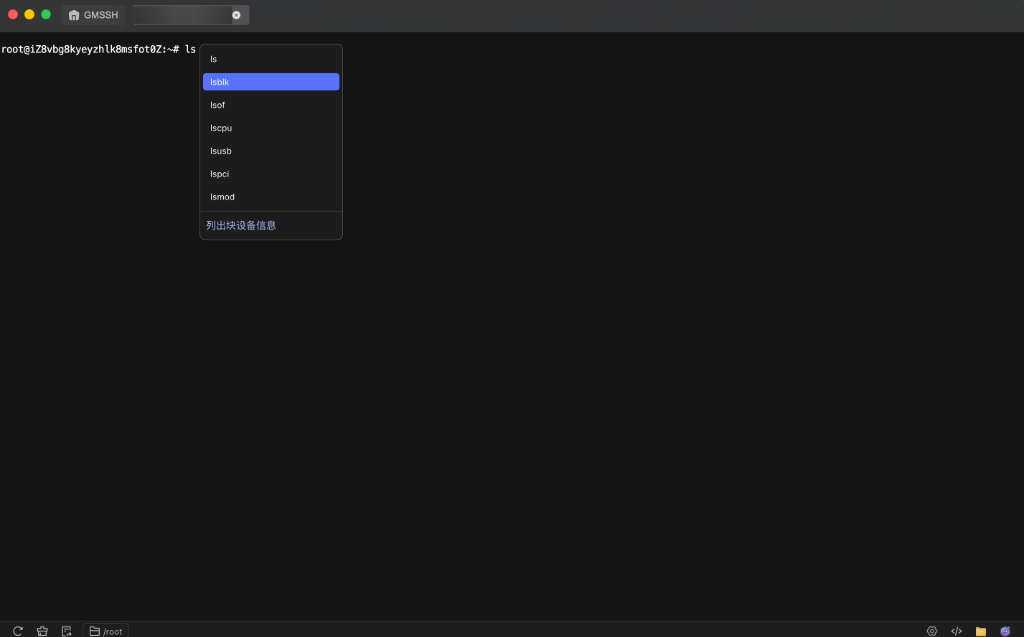
- Real-Time Completion: Type a command prefix (e.g.,
ls) and matching commands automatically appear (ls,lsblk,lsof,lscpu,lsusb,lspci,lsmod, etc.). - Command Descriptions: The selected command shows a description at the bottom (e.g., "List block device information"), helping you quickly understand command purposes.
- Keyboard Navigation: Use arrow keys to navigate the suggestion list, press
TaborEnterto confirm.
Tip
Terminal autocomplete can be enabled or disabled in Terminal Settings.
Command History
The right sidebar provides a "Command History" panel displaying all command history for the current session.
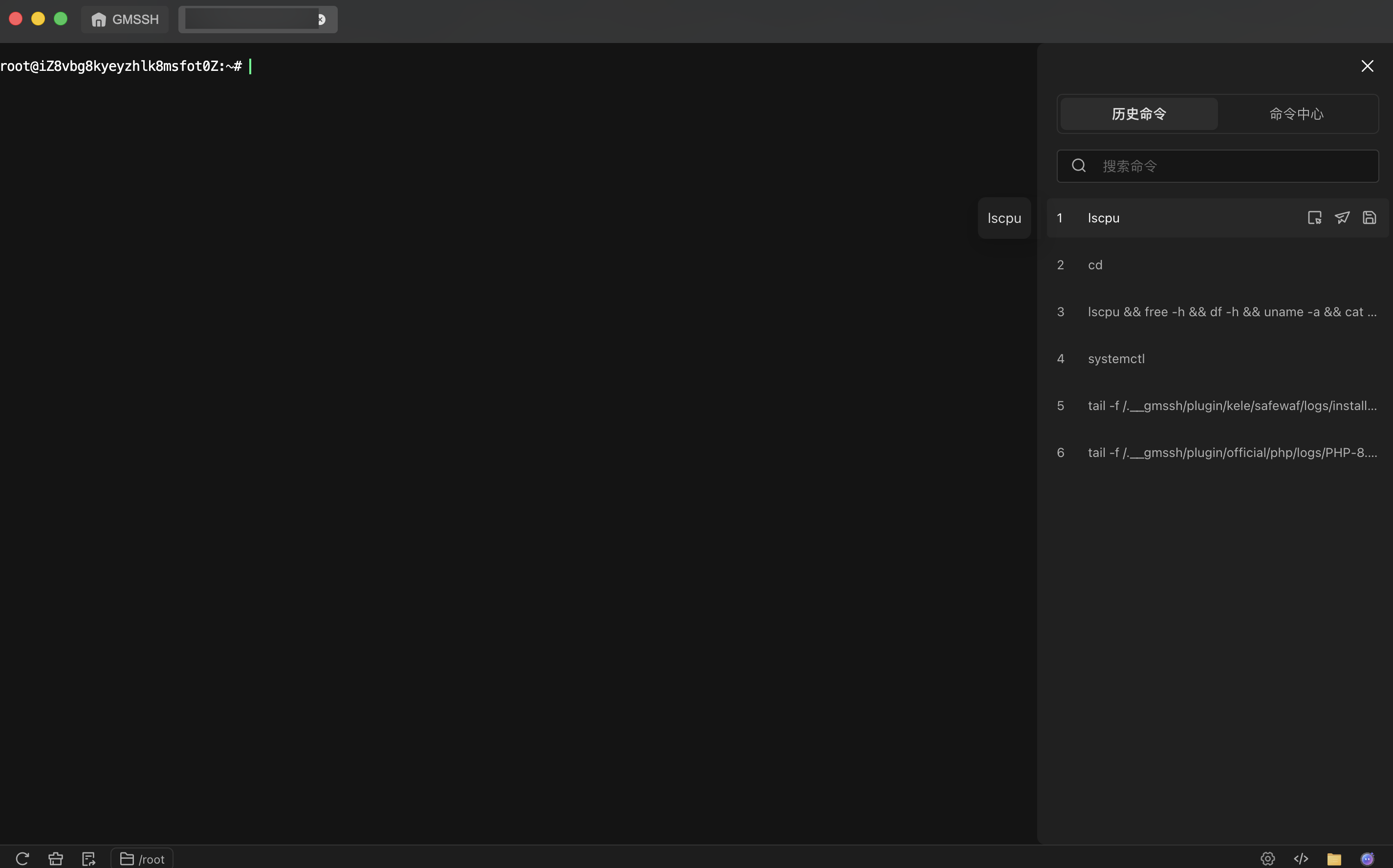
- History Tab: Switch to the "Command History" tab to view executed commands.
- Numbered Order: Each command is numbered by execution order, most recent first.
- Search Filter: Top search box supports filtering history by command content.
- Autocomplete Integration: While typing, the suggestion panel also shows matching history commands near the cursor.
- Quick Actions: Each history entry provides action icons on the right:
- 📋 Copy command to clipboard
- 📌 Pin as frequently used command
- 📄 Save to Command Center
Command Center
Switch to the "Command Center" tab in the right sidebar to browse and use the command library directly within the terminal.
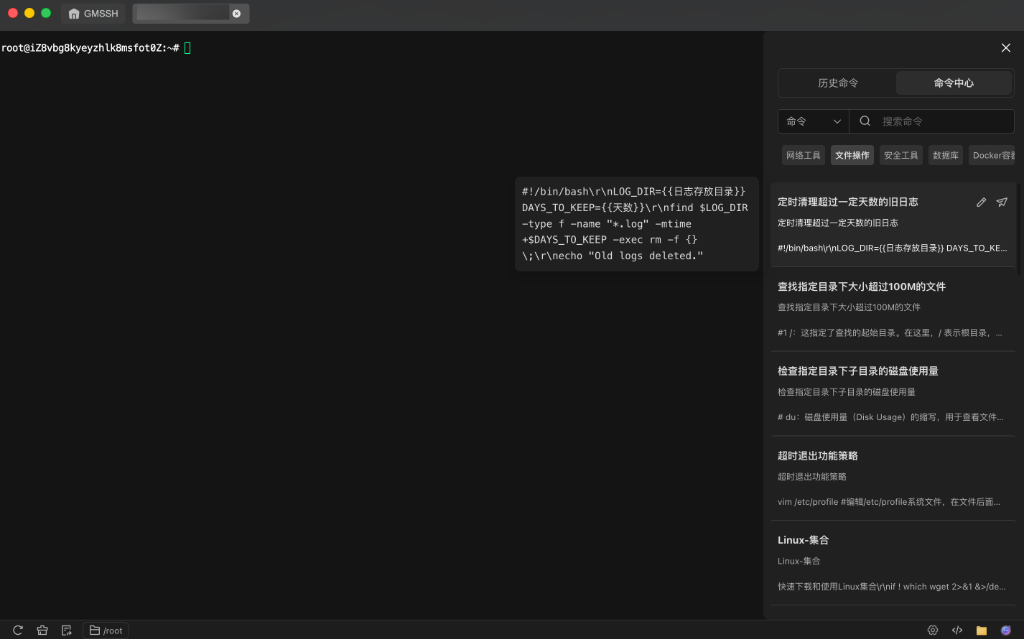
- Command Center Tab: Displays all saved common commands.
- Category Filter: Category tags (Network Tools, File Operations, Security Tools, Database, Docker, etc.) for quick filtering.
- Search: Search by command name and description.
- Command Preview: Hover or click a command entry to show a script preview bubble in the terminal area.
- Quick Actions: Each command provides edit and execute buttons for one-click execution in the current terminal.
File Integration
The file integration panel in the terminal sidebar provides visual remote file management, complementing the command line.
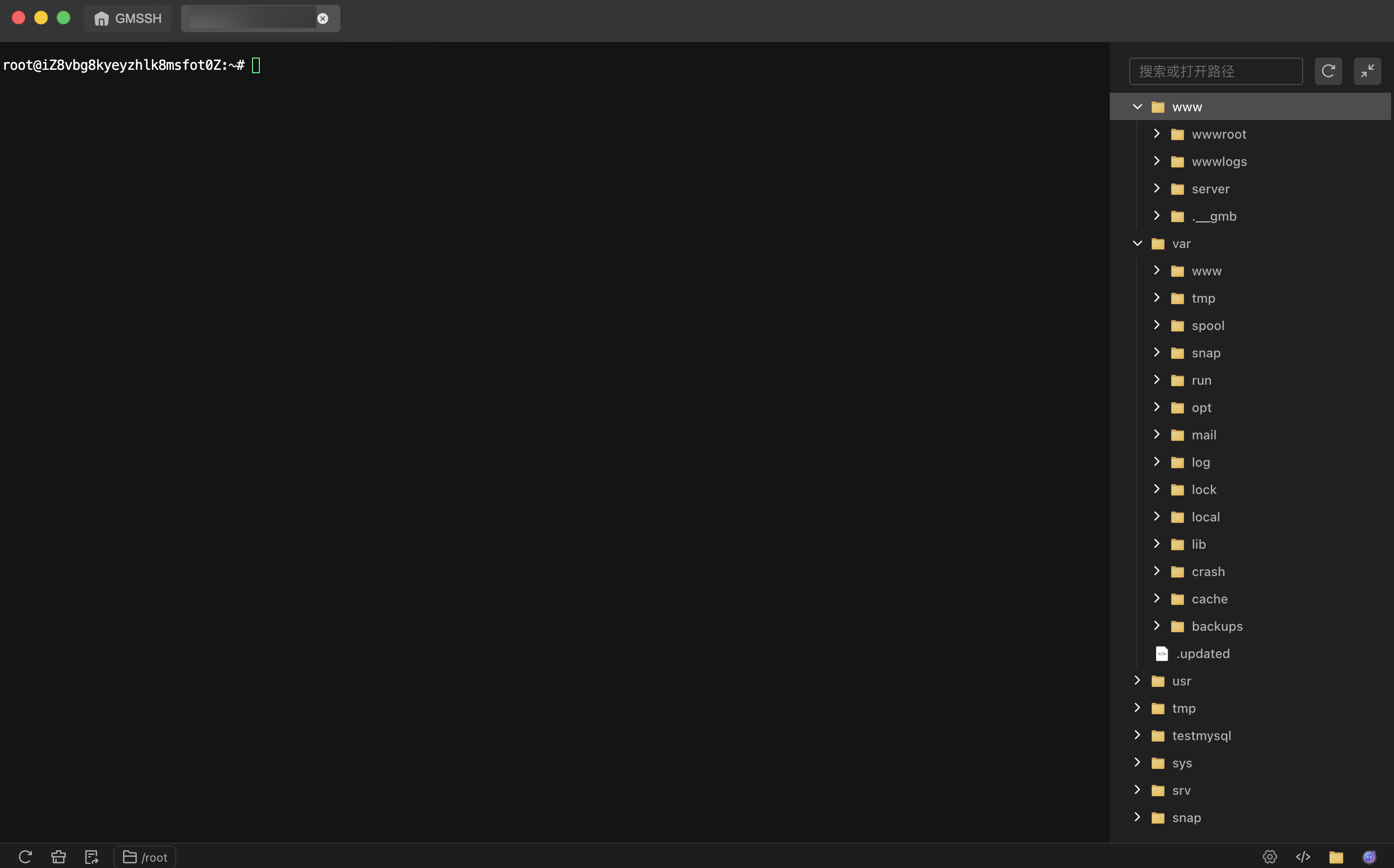
- Directory Tree: Displays the remote server's file system in a tree structure with expandable/collapsible directory levels.
- Path Search: Top search box supports direct path input for quick navigation.
- Refresh: Click the refresh button to reload the directory structure.
- Fullscreen: Expand the file panel to fullscreen for a larger workspace.
- Context Menu: Right-click on files or directories for an action menu:
| Action | Description |
|---|---|
| New Folder | Create a new folder in the current directory |
| Permissions | View and modify file/directory permissions |
| Upload | Upload local files to the current directory |
| Delete | Delete the selected file or directory |
Tip
File integration can be enabled or disabled in Terminal Settings.
Gemius AI Assistant
Press ⌘ + L or click the AI icon in the bottom toolbar to open the Gemius AI assistant panel.
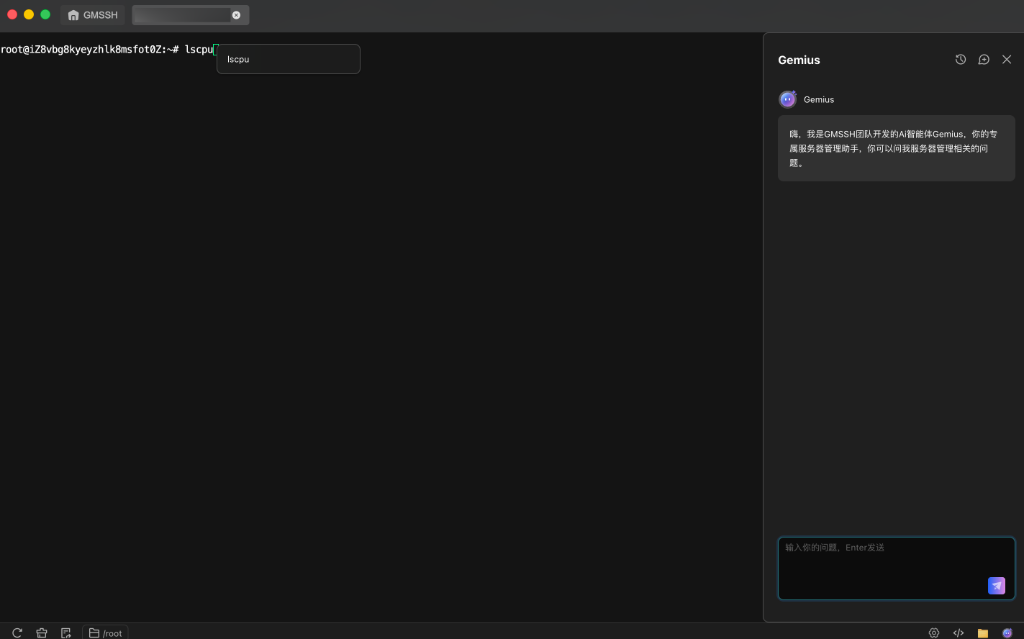
Gemius is an AI agent developed by the GMSSH team, your dedicated server management assistant:
- Server Q&A: Answers questions about server management, Linux operations, network configuration, and more.
- Command Explanations: Paste unfamiliar commands to get detailed explanations.
- Solution Recommendations: Describe your operations needs and get best practice solutions.
- History: View past conversation history.
Type your question and press Enter to send. Gemius responds in real-time.
Tip
For more about Gemius, see: Gemius AI
Terminal Settings
Click the settings icon in the bottom toolbar to open the terminal settings panel for personalizing terminal behavior:
| Setting | Default | Description |
|---|---|---|
| File Integration | Off | Show file integration panel on the right when enabled |
| Auto Right-Click | Off | Auto-paste clipboard content on right-click when enabled |
| Terminal Autocomplete | On | Real-time autocomplete suggestions when enabled |
| Quick Copy | On | Auto-copy selected text to clipboard |
| Quick Paste | On | Quick paste via middle mouse button |
| Quick Switch | On | Shortcut key terminal tab switching |
| Font Size | 14 | Terminal font size, adjustable with +/- |
Bottom Toolbar
The terminal bottom toolbar provides quick access to common features:
- Refresh Connection: Re-establish the SSH connection
- Terminal Settings: Open the settings panel
- Upload File: Quick upload local files to the server
- Current Path: Display the current working directory (e.g.,
/root) - Gemius AI: Open the AI assistant panel
- Code Editor: Open the built-in code editor
Shortcuts
| Shortcut | Function |
|---|---|
⌘ + I | AI command generation |
⌘ + L | Open Gemius AI assistant |
⌘ + R | Execute AI-generated command |
⌘ + ↵ | Accept AI-generated command |
Esc | Reject AI-generated command |