
Gemius AI
Gemius is GMSSH's built-in intelligent Linux operations assistant, powered by large language models. It understands natural language instructions and directly operates on servers. Whether it's file management, system inspection, log analysis, or technical Q&A, Gemius handles it efficiently through conversational interaction — making server operations as simple as chatting.
Core Features
| Feature | Purpose | Core Capabilities |
|---|---|---|
| Smart Conversation | AI Interaction | Natural language Q&A, command generation, problem diagnosis |
| Tool Invocation | Auto Execution | Call system tools for file, network, process operations |
| Thinking Process | Transparent Reasoning | Display AI's reasoning chain and tool call details |
| Model Configuration | Flexible Switching | Support custom API providers and models |
| Security Controls | Permission Management | Execution approval, sensitive word filtering, tool authorization |
| Chat History | Session Management | Conversation records, quick recall |
Smart Conversation
Welcome Screen
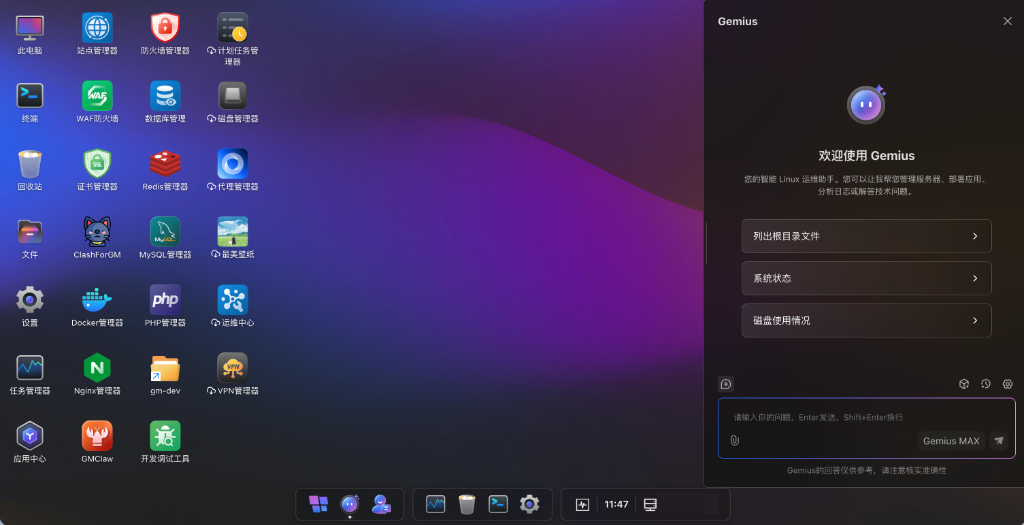
Opening Gemius for the first time displays the welcome screen:
- Quick Action Cards: One-click access to common operations scenarios:
| Quick Action | Description |
|---|---|
| List Root Directory | View the server's root directory structure |
| System Status | Check CPU, memory, load, and other system info |
| Disk Usage | View disk partitions and usage |
- Input Box: Bottom input box supports any question or instruction.
Enterto send,Shift + Enterfor new line. - Model Selection: Right side of input box shows the current model (e.g.,
Gemius MAX), switchable to different models.
Conversation Interaction
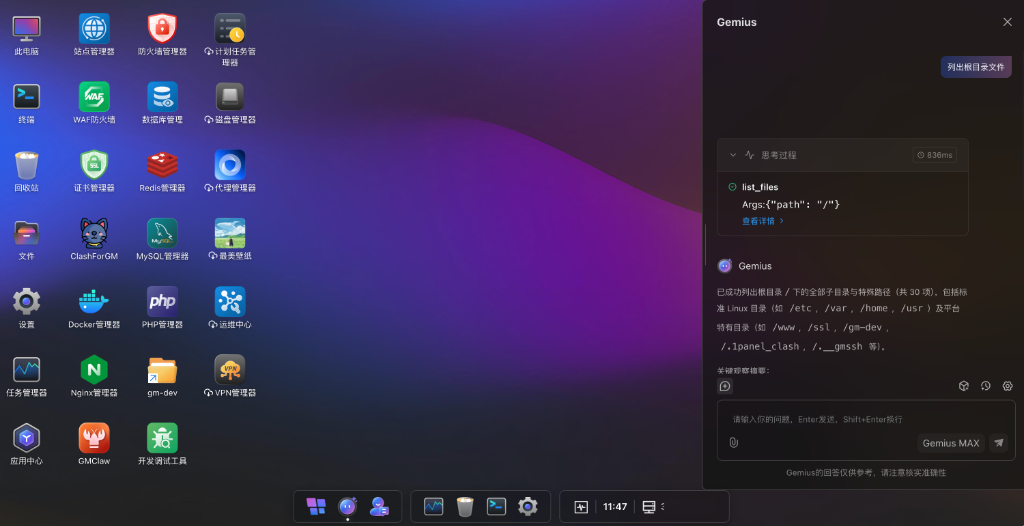
Gemius interacts with users in a conversational format, supporting multi-turn context understanding:
- User Messages: Right-side bubbles display user questions or instructions.
- Thinking Process: Before AI replies, an expandable "Thinking Process" area shows reasoning time (e.g.,
836ms). Expand to view the detailed reasoning chain. - Tool Invocation: When AI needs to perform actions, it displays the tool name and parameters:
- Tool name (e.g.,
list_files) - Call arguments (e.g.,
Args:{"path": "/"}) - "View Details" link to expand full call results
- Tool name (e.g.,
- AI Reply: Summarizes tool call results in natural language with clear analysis and explanations.
- Related Exploration: Suggestions for further exploration at the bottom of replies — click to continue deeper operations.
Model Configuration
Click the settings icon in the Gemius panel to enter the "Model Configuration" page for customizing AI model connections.
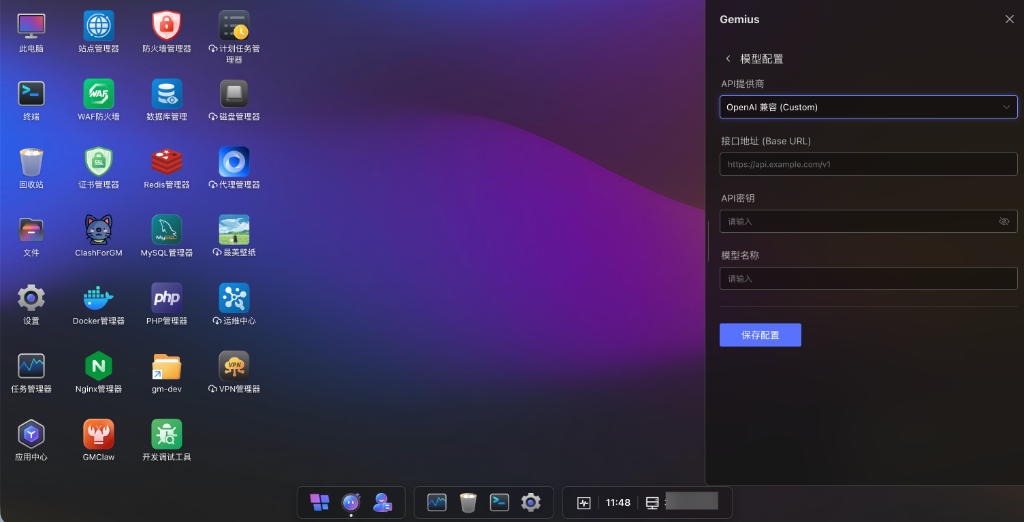
| Field | Description | Example |
|---|---|---|
| API Provider | Choose an AI service provider | OpenAI Compatible (Custom) |
| Base URL | API service access address | https://api.example.com/v1 |
| API Key | Authentication key, with visibility toggle | — |
| Model Name | Specify the model name to use | — |
Click "Save Configuration" to apply.
Tip
Gemius uses the built-in Gemius MAX model by default. To use custom models (e.g., OpenAI, DeepSeek), configure them on this page.
Settings
Click the settings icon to enter the Gemius Settings page for managing AI behavior and security policies.
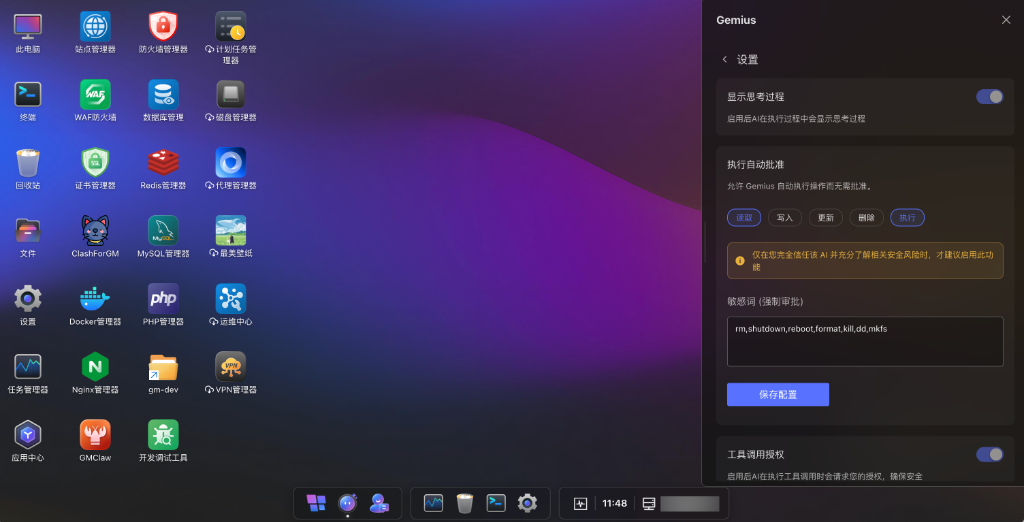
Show Thinking Process
- Toggle: When enabled, AI displays its thinking process during execution.
- Observe the AI's reasoning chain, tool selection logic, and execution steps to understand its decision-making.
Auto-Approve Execution
Allow Gemius to automatically execute operations without manual approval. Provides 5 granular permission levels:
| Permission | Description |
|---|---|
| Read | Auto-execute read operations (view files, list directories, etc.) |
| Write | Auto-execute write operations (create files, write content, etc.) |
| Update | Auto-execute update operations (modify files, update configs, etc.) |
| Delete | Auto-execute delete operations (delete files, remove configs, etc.) |
| Execute | Auto-execute command operations (run scripts, execute commands, etc.) |
Note
Only enable this feature when you fully trust the AI and understand the associated security risks.
Sensitive Words (Forced Approval)
Configure a list of sensitive operation keywords. When AI-generated commands contain these keywords, manual approval is required regardless of auto-approve settings.
- Default Sensitive Words:
rm,shutdown,reboot,format,kill,dd,mkfs - Supports custom addition or removal of keywords, separated by commas.
Tool Invocation Authorization
- Toggle: When enabled, AI requests your authorization before executing tool calls for safety.
- Recommended to keep enabled to prevent AI from executing sensitive operations without confirmation.
Click "Save Configuration" to apply.
Chat History
Click the history icon in the bottom toolbar to enter the "Chat History" page for viewing all past conversations.
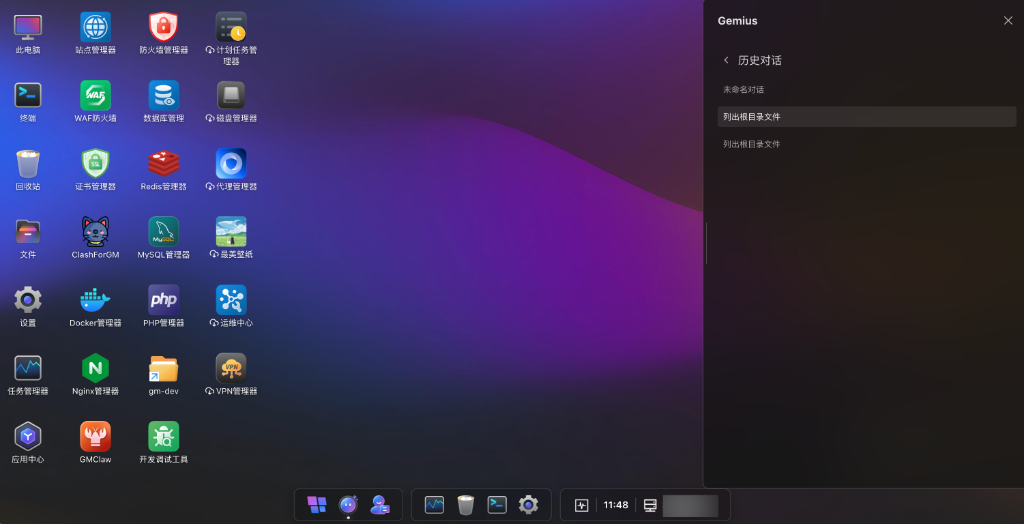
- Conversation List: Displays all historical conversations in reverse chronological order, showing conversation titles (auto-generated by AI or displayed as "Unnamed Conversation").
- Quick Restore: Click any conversation record to restore the conversation context and continue interacting.